Using wicd-curses
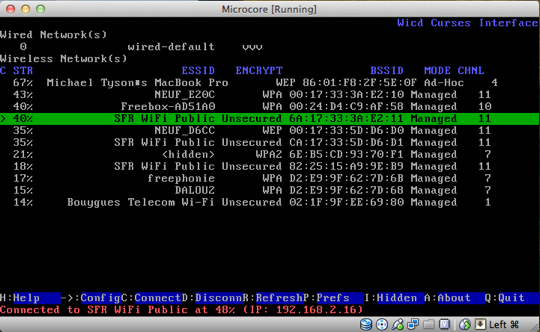
- Plug your wifi dongle in. I cannot impress on you enough how important this is ;-)
- If you've not done it already, login as root and install wicd-curses:
- apt-get install wicd-curses
- Run it. Just type
- wicd-curses
- You're given the wicd interface. You probably haven't got anything showing yet, so do Shift-R to refresh the network scan.
- Use the arrow keys to highlight your router and press -->
- Go down and hit space when you reach the Automatic connection checkbox.
- Then, go down to the password field and put your wifi router password in.
- Hit F10 to save the settings and you'll go back to the first screen.
- Highlight your router if it's not already and hit shift-C to connect.
- Hopefully, this will connect you. If not, check your password!
- Do shift-Q to come out of wicd.
- Type ifconfig -a and you should see your wlan0 connected to your router and your ip address displayed.
The beauty of doing it like this rather than via the command line is that wicd runs as a daemon when your Pi starts up and will automatically connect to the network without you doing anything else.
NB: You may have to wait a minute or so for it to connect.
I've also found that if you're using WPA, you need to set the correct date and time, otherwise it will fail at password/PSK verification.
ReplyDeleteReally? I didn't find that... though I think I'm using WPA2, so that might be the difference.
ReplyDeleteYeah, took me ages to figure it out until I came across a 'normal linux' post about wireless network configuration and the need to have accurate date/time. Sure enough, connect LAN to get ntpd to set the date, disconnect the LAN and the WLAN comes up a treat. I'm going to put a RTC on the Pi using this tutorial as a guide (I might also try using WPA2 - thanks for the tip!):
Deletehttp://www.element14.com/community/groups/raspberry-pi/blog/2012/07/19/what-time-is-it-adding-a-rtc-to-the-raspberry-pi-via-i2c